How to import only the equipment from a Navisworks model?
Bring just the equipment of a large Navisworks model into Kryptos, and ignore the piping, structure and everything else, in one import.
4 min read
Sometimes you only need the equipment. Early in a project, the risk grades are drawn around vessels, pumps and compressors, and the piping and steel only get in the way of seeing them. A full plant model can also be heavy, and an equipment-only model comes in faster and moves more smoothly on screen.
Kryptos can pick the equipment out of a full Navisworks model as it comes in, using Import by Category. Normally, Import by Category splits the model into one geometry per category (equipment, piping, structure and so on). Here, we keep only the equipment row and tell Kryptos to ignore everything else.
Step 1: Open the Navisworks file
- On the Geometry tab, click Import Geometry.
- Choose your Navisworks NWD or NWC file.
The Import Geometry Settings window opens. With Import by Category unticked, the whole model comes in as one geometry, with one name and one tag.
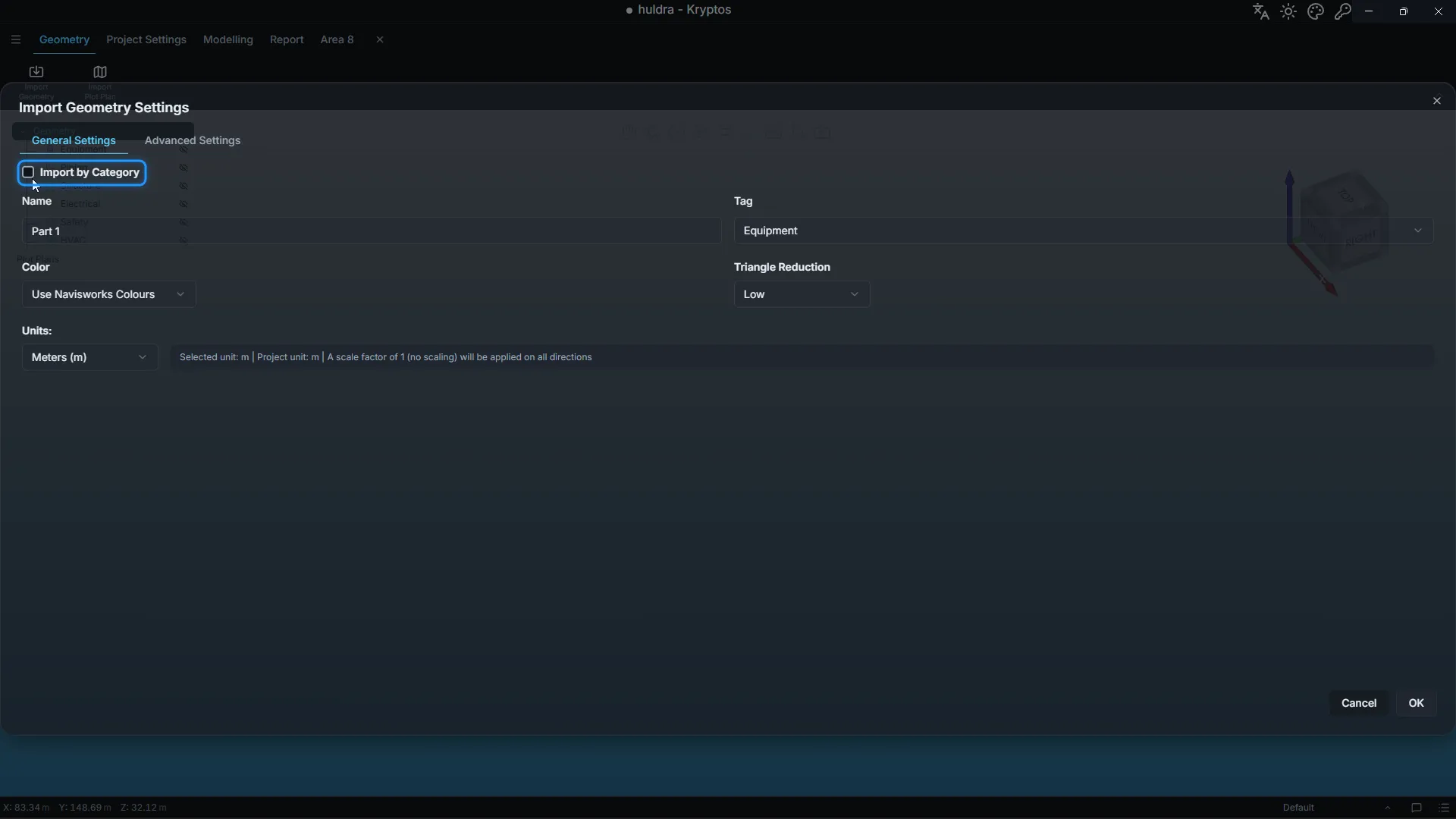
Step 2: Turn on Import by Category
Tick Import by Category. The single name and tag are replaced by a table, with one row per category.
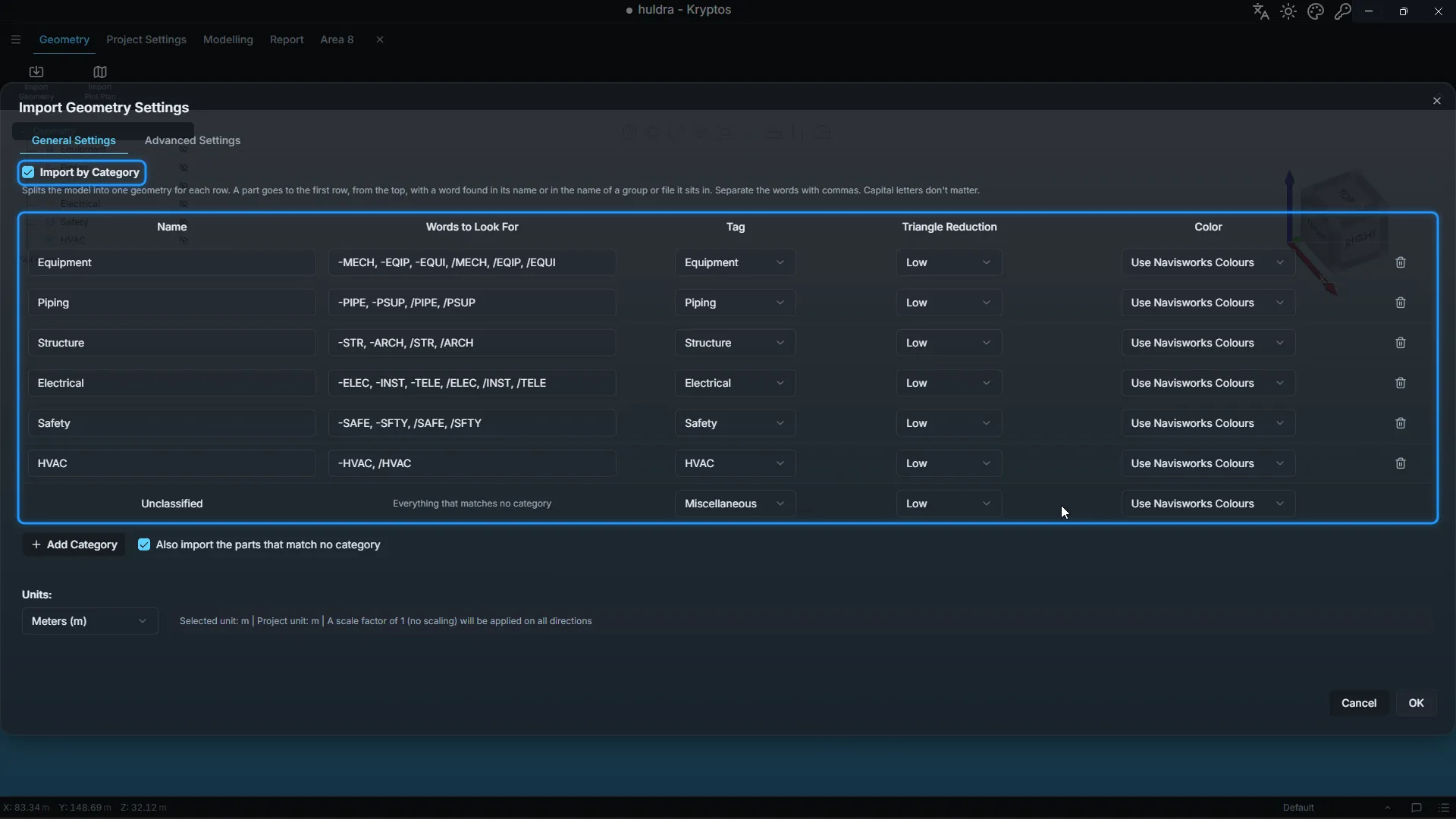
Each row has:
- Name: the name the geometry gets in the tree.
- Words to Look For: the words Kryptos searches for in the model’s names to decide which parts go in this row.
- Tag, Triangle Reduction and Color: the same settings as a normal import, set for this row only.
Kryptos starts you with six rows (Equipment, Piping, Structure, Electrical, Safety and HVAC) with words that suit most models. The last row, Unclassified, catches everything that matches no row.
Step 3: Delete every row except Equipment
Click the bin icon at the end of each row you do not need: Piping, Structure, Electrical, Safety and HVAC.
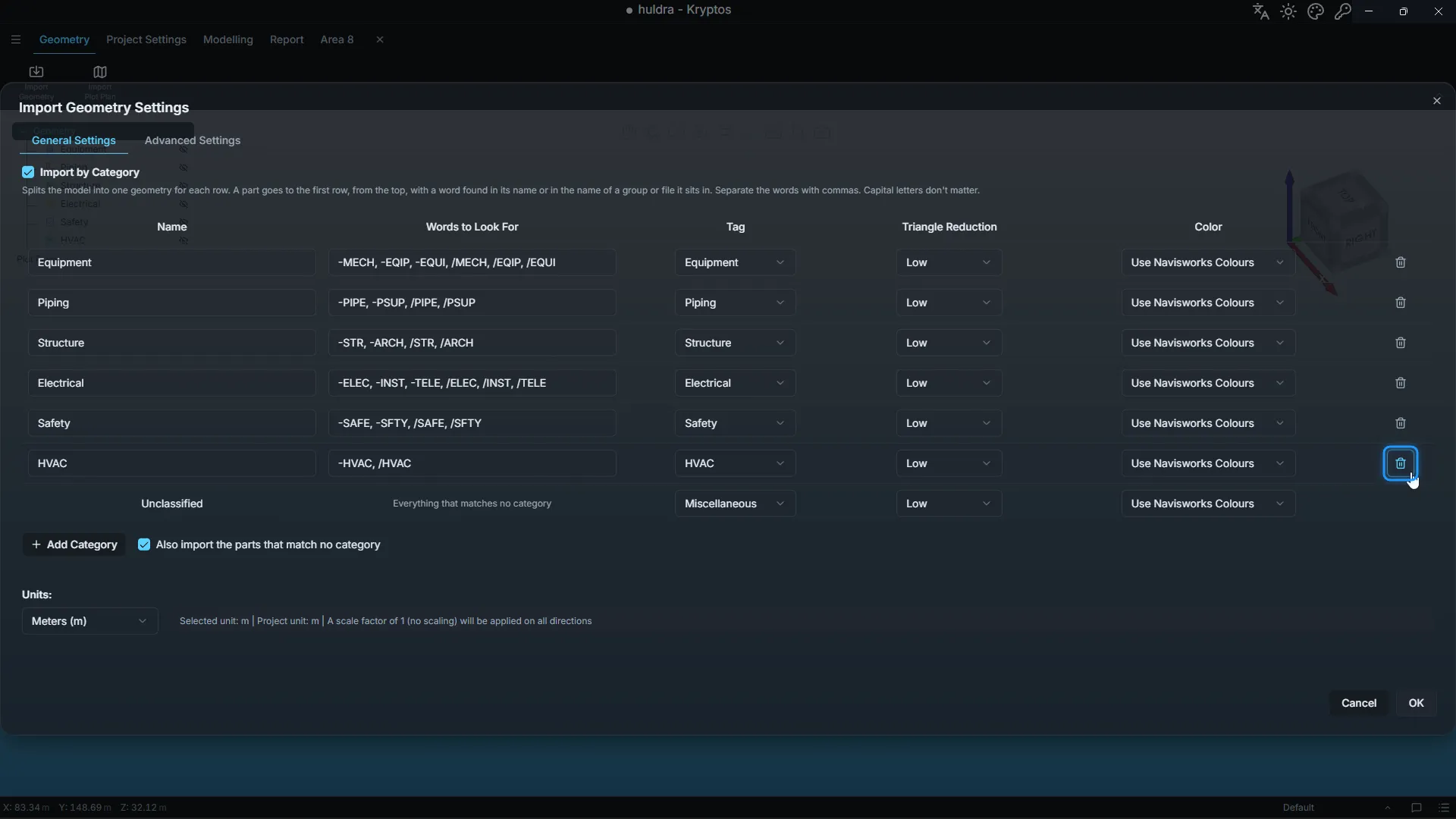
Only Equipment and Unclassified are left.
Step 4: Ignore everything else
As it is, the parts you deleted the rows for would not disappear. They would match no category, so they would all land in Unclassified and still come in.
Untick Also import the parts that match no category.
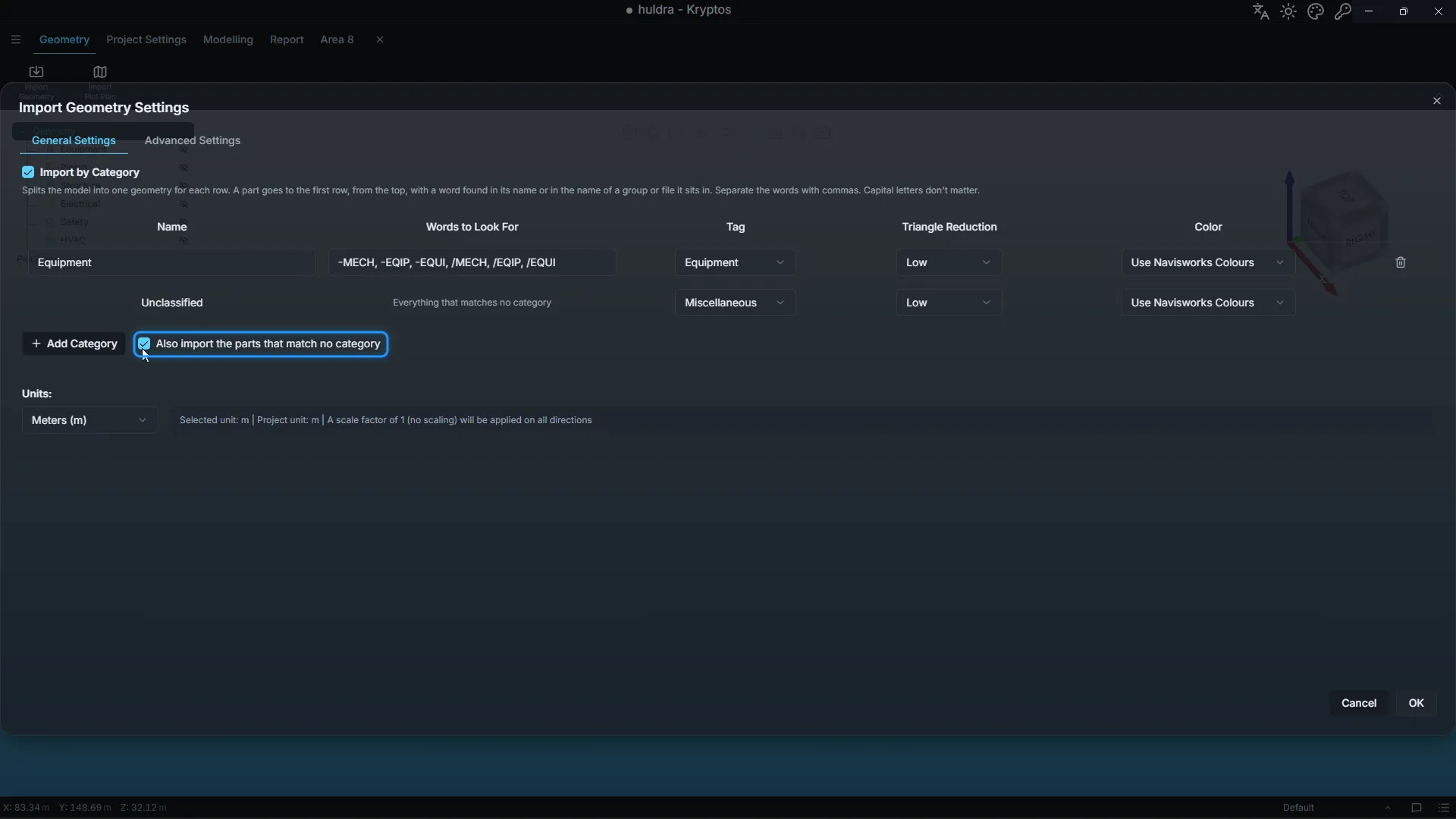
The Unclassified row disappears. Everything that is not equipment is now ignored.
Step 5: Check the words and click OK
- Check the Words to Look For in the Equipment row. They must match how your model names its equipment. The starting words are
-MECH, -EQIP, -EQUI, /MECH, /EQIP, /EQUI. Put a comma between words. - Pick the Triangle Reduction and Color for the equipment.
- Click OK.
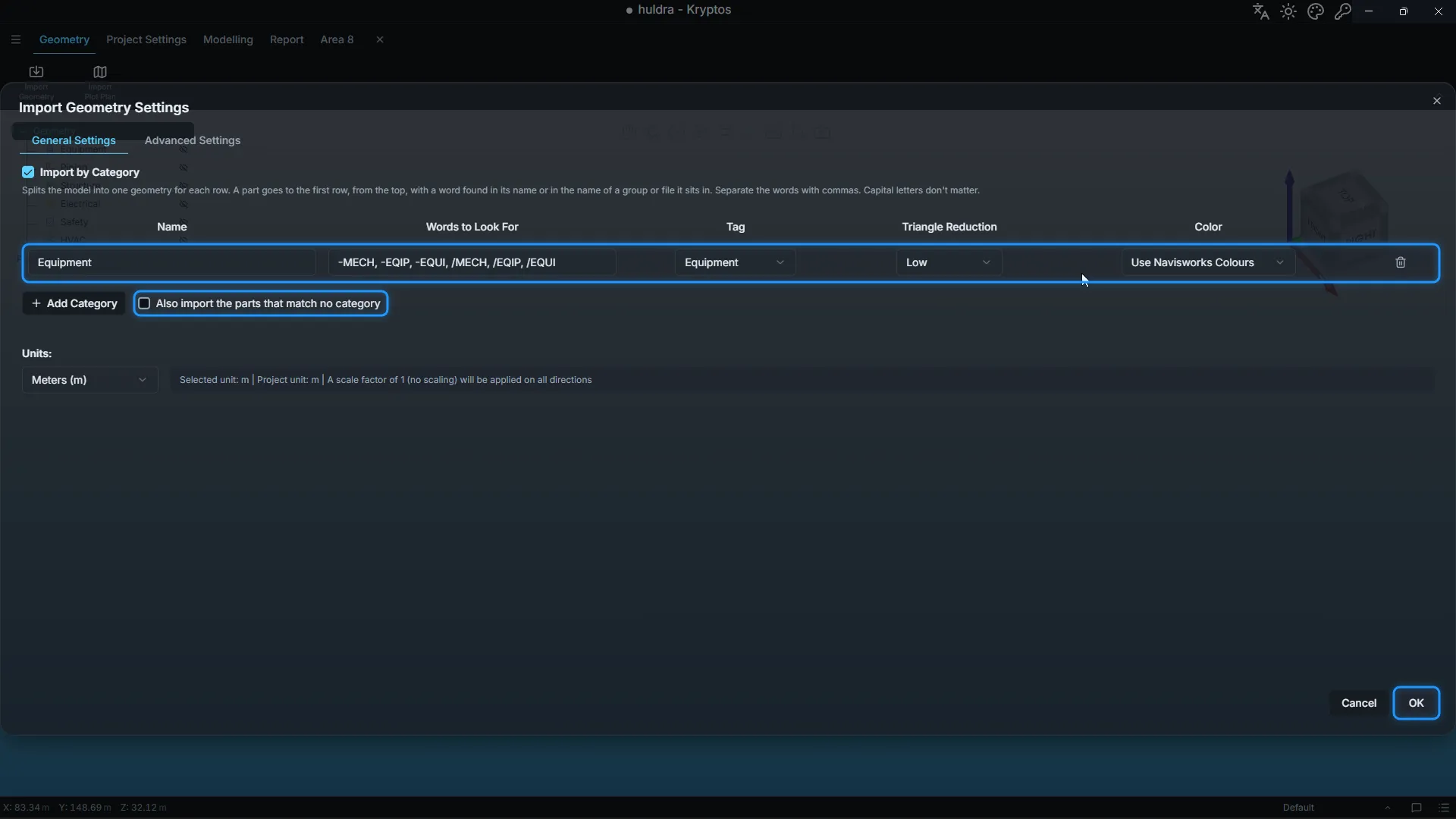
Only the parts that match the Equipment words come in, as one geometry named and tagged Equipment.
How Kryptos matches the words
Kryptos checks the name of each part, and the names of the groups and files it sits in. A part goes to the first row, from the top, with one of its words in any of those names. Capital or small letters make no difference.
- Look at your model first. Open it in Navisworks and look at how the groups and files are named. Many models use short codes in their names, such as
-EQUIor-MECH. Those make good words. - Start a word with a dash or a slash. A dash matches the code in a name such as
P-EQUI-101. A slash matches a folder or file name such as.../EQUI/.... Either way, the word cannot match by accident inside a longer word. - Add your own words. If your model names its equipment differently, add that word to the list, after a comma.
- Try again if needed. If the first try brings in too much or too little, delete the geometry, adjust the words and import again.
For every Import by Category setting, see Import by Category in the Kryptos documentation.
Keep in mind
What you do not import is not in the calculations. Without piping and structure, nothing blocks a fire detector’s view, so fire coverage can look better than it really is. Use an equipment-only model for early work, such as drawing grades, and import the rest of the plant before you calculate the coverage you report.
You do not have to start again when you do. Import the full model, or just the missing categories, into the same project. The grades and decks you have already drawn stay where they are.
For every import setting, from units to colours and triangle reduction, see Navisworks file import done in just about a minute.